Showing posts with label Firefox. Show all posts

Tuesday, April 29, 2014

Firefox gets a makeover and introduces user accounts

Mozilla has released a new stable version of its Firefox browser which adopts the Australis user interface.The friction within the Mozilla board did not alter the pace of development and the new Firefox is available for download .

Initially expected for Firefox 24, the Australis interface has now officially appeared on the browser.
It is characterized by less angular tabs and better display.


Much like Chrome, we could now find the options menu to the right of the address bar. It provides access to preferences, extensions, options or full screen mode.

Firefox 29 also features a new synchronization module. More specifically, it will be easier to ensure the transfer of data by creating a user account rather than entering a security key. For each account, it will be possible to retrieve bookmarks, add- ons, passwords, browsing history or preferences and tabs.

For those of you who are nostalgic, it is possible to reload the old UI by downloading this extension: old-firefox


Wednesday, April 3, 2013

Firefox 20 available in final version

While Netscape freed, 15 years ago, the source code of its Web browser, resulting in the birth of the Mozilla project, Firefox is celebrating today its twentieth release. While the version numbers do not mean much anymore, but each Firefox version has brought a lot of new yet important updates so far. 
In addition to traditional invisible but important improvements, Firefox 20 has two new special updates to the user: 
First and the most visible, the new download manager and button at the top right of the toolbar. No need to start the download window, a single click will display the latest downloads and progression of downloads appears below the button. It is still possible to display a specific window, called "Library" which allows you to organize the downloaded files.


Another innovation will address the fans of  porn (private) mode that is particularly useful. Firefox offered previously the choice to reboot in private mode when it was selected, then closing the session where you were and preventing juggle between as it is possible such as Chrome.  

This twentieth release now offers navigation window that no longer requires the user to have to close the session to enjoy the incognito mode.

Note that this latest development is also valid for the Android smartphones version of Firefox

Finally, for developers, we note the integration of WebRTC's getUserMedia API, a toolbox allowing faster access to development tools. Firefox is available for: Windows, OS X, Linux, Android.

Saturday, January 5, 2013

When does Gmail block your account?

One of the possibility why you can’t log in to your Gmail account is because of it having been locked by Google. This happens automatically when “abnormal usage” indicates that an account has been compromised. According to Google, it may take up to 24 hours before account access is reinstated.  Reasons for locked accounts include:

  • Receiving, deleting, or downloading large amounts of mail in a short period of time. If you're getting the error message, 'Lockdown in Sector 4,' you should be able to access Gmail again after waiting 24 hours.
  • Sending a large number of undeliverable messages (messages that bounce back).
  • Using file-sharing or file-storage software, browser3 extensions, or third party software that automatically logs in to your account.
  • Running multiple instances of Gmail.
  • Browser-related issues. Please note that if you find your browser continually reloading while attempting to access your Inbox, it's probably a browser issue, and it may be necessary to clear your browser's cache4 and cookies.
Another possibilities of why you can't log in to your account are:
  1. Login problems.
  2. Forgotten username or password.
  3. Hacked accounts.

Thursday, December 27, 2012

How to access any blocked website using ssh tunnel?


How much do you hate it when you're at work, school, college surfing the web, trying to access some website and you get prohibited, because "they" don't want you to see the content of just because you have some work to do and you shouldn't waste your time on Facebook.

Here in this post you will learn how to bypass the web filter using ssh tunnel in 3 extremely easy steps.

Don't be so hasty now, it's not the time for you to skip to the steps. First you have to know a little about ssh tunnels and firewalls.

Well, as shown clearly in the picture above all that an ssh tunnel do is connect to an online ssh server that allows SSH access and create a Tunnel between the host PC(ssh client) and server by bypassing the web Filter.

As for the firewall, well it is the sadistic son of a b*tch that is prohibiting you from accessing facebook. As you see in the picture below.
Or, as Wikipedia defines it: a software-based or hardware-based and is used to help keep a network secure. Its primary objective is to control the incoming and outgoing network traffic by analyzing the data packets and determining whether it should be allowed through or not, based on a predetermined rule set.

Now after I bored you to death with my babbling here is how you can access Facebook, Youtube, ..from your work place or school :


Saturday, October 27, 2012

5 Firefox Security Settings for Safety

Posted on The Den the 16th of oct 2012

This Halloween, don't be scared, be secure! Here are 5 Firefox security settings to keep you safer online.

It’s time for Halloween in the U.S. and people have scary things on their mind. There are scary things on the Internet as well, but Firefox doesn’t want you to get “tricked.” For a Halloween “treat” instead, here’s an overview of some of the security settings you’ll find in Firefox.
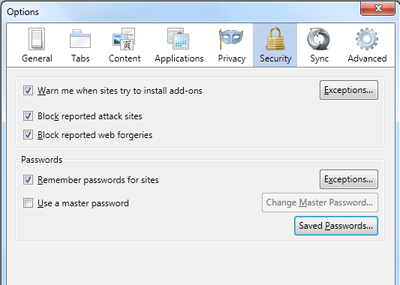
For PC users, go to your Firefox Menu and select Options > Options. In that menu, click on the Security tab (with the lock icon). Here are some of the settings you can chose to increase (or decrease) your security on Firefox and how they can protect you:
    Security Settings
  • Warn me when sites try to install add-ons: Firefox will always ask you to confirm installations of add-ons (those little pieces of software that enhance your Firefox experience — a full list found here). To prevent unrequested installation prompts, Firefox warns you when a website tries to install an add-on and blocks it. You can add exceptions to this rule for sites you trust — just click Exceptions, enter the site name and click Allow.
  • Block reported attack sites: Check this if you want Firefox to check whether the site you are visiting may be an attempt to interfere with normal computer functions or send personal data about you to unauthorized parties over the Internet (note that the absence of a warning does not guarantee that a site is trustworthy).
  • Block reported Web forgeries: Check this if you want Firefox to actively check whether the site you are visiting may be an attempt to mislead you into providing personal information (this is often referred to as phishing). (Note that the absence of a warning does not guarantee that a site is trustworthy. For more information, see How the phishing and malware protection in Firefox works.)
  • Remember passwords for sites: Firefox can securely save passwords you enter in Web forms to make it easier to log in to websites. Clear this checkbox to prevent Firefox from remembering your passwords (for example, if you’re on a public computer). Even with this checked, however, you’ll still be asked whether to save passwords for a site when you first visit it. If you select Never for This Site, that site will be added to an exceptions list. Use Exceptions to access that list.
  • Use a master password: Firefox can protect sensitive information such as saved passwords and certificates by encrypting them using a master password. If you create a master password, each time you start Firefox it will ask you to enter the password the first time it needs to access a certificate or stored password. You can set, change or remove the master password by checking or unchecking this preference or by clicking the Change Master Password… button. If a master password is already set, you will need to enter it in order to change or remove the master password.
And that’s just what’s available in the Firefox Security Settings menu. Firefox is all about defending your Internet privacy and security with features like Private Browsing  and Do Not Track,  among others. Read the blog post on 6 ways to stay secure on Firefox or read this for a comprehensive list of Firefox Security features and stay safe online.