Showing posts with label tutorial. Show all posts

Sunday, May 12, 2013

Two quick tips for bloggers!


These two tips are for those of you who use the Blogspot(Blogger) platform.

  1. Replace the Blogger sharing widget:

    If you are on Blogger you must agree with me, of how ugly and small the sharing widget is, it's almost impossible to see it, for someone who visits the blog for the first time.
    This is what I'm talking about:

    Now, I always found the sharing widget provided by po.st very nice and you have a variety of designs you can go with.

    To get it you only have to sign up, choose the design you want and get the code.

    Now to replace the Blogger's default widget:
    • Go to Dashboard > Layout > Edit (Blog posts) > Uncheck the "Show share buttons" box.
    • Go to Template > Edit HTML > Expand Widget Template.
    • Search for and insert the code of the new sharing buttons(copied from po.st) just under it.
    • Save and enjoy it.

  2. Add JS-Kit Rating to Blogger:

    Add a rating bar like this to each of your blog posts.

    Widget Code:
    <div style="float:left; margin-right:3px;"></div> <div class="js-kit-rating" expr:path="data:post.url" expr:permalink="data:post.url" expr:title="data:post.title"></div>

    • Go to Template> Edit HTML > Expand Widget Template.
    • Copy the code above.
    • Search for <data:post.body/> to insert the widget under the post body.
    • Search for <div class="post-header-line-1"> to insert the widget under the post title.
Before you edit the  HTML make sure to save a backup on your hard disk.

Wednesday, March 13, 2013

Use Twitter as a Gmail notifier and get SMS for new mail

Before starting I have to state that this project is created by the genius Mr.Amit Agarwal, I'm just creating this tutorial to demonstrate and explain the process.

So, as Mr. Argawal mentions this idea will let  can turn your Twitter Timeline into a Gmail Notifier and get notified (via tweets) as soon as new email messages arrive in your mailbox.And since you can link Twitter to your phone number, you can even get SMS text alerts for new Gmail messages.

This three steps process should take you 5 minutes and it is really easy to follow. Let's start: 

1- Creating a new Twitter app Gmail:

First I'm going to create a brand new twitter account and I'm gonna call it h20platform. Then, we'll have to go to the twitter settings and check the option “Protect My Tweets” and uncheck the option “Let others find me by my email address.” 


Now to create the application, go to https://dev.twitter.com/apps/new, sign in with your new twitter account and fill the fields as the picture below shows:


Thursday, January 10, 2013

A dilemma : how to get ideas for my posts

Whether you're a professional blogger writing for the most important blogs on the web or a not so professional who got his application rejected so many times, or just an amateur who just got started; Whether you're young, old, tall, short, clever, dumb, to make a successful blog post you need an idea.

A bunch of them actually, because let's face it: You can get away with bad writing (My case), but you'll never get away with a bad idea.

Bunch of ideas


How to find an idea?

Normally there is three ways to come up with an idea for a new post:
  1. An idea can just pop uninvited into your head, and you will come up with a great post. But, sadly, you can't rely on this all the time.
  2. You can steal from other blogs, and maybe tweak it a little.(if you have a shred of dignity)

Wednesday, January 2, 2013

Stop spamming and advertising

This is a quick tip about how to stop spamming and advertising using 'Gmail Filters'. It's really so simple and doesn't take any effort.

This method isn't very sophisticated, it's based on a very simple logic and works 90% of the time.
What we're going to do is, to delete every  message that contains the word subscribe in it; Since all the advertising and spamming mails contain this word.
In case you are subscribed to some important mailing lists, you might want to not delete it. You could make it skip the inbox and forward it to a label that you create.

So to create a filter on Gmail, go to settings>filters>create new filter.
We want to apply the filters on every message that has the word 'unsubscribe'  and this filter should delete this message.
I hope this was useful, and be careful while applying filters.

Sunday, December 30, 2012

Set up your own ssh server.

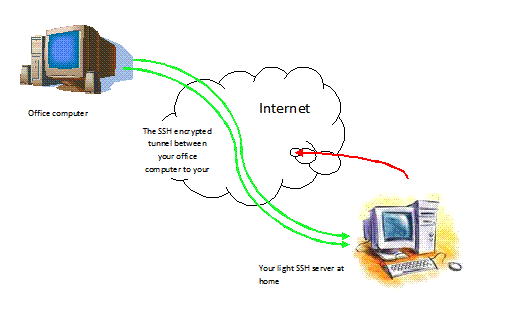
In the previous post we talked a little about ssh tunnels and  and how to connect from a workstation to a server using an ssh client (puTTY) .
The ssh server we connected to last time was hosted at cjb.net, today I'm gonna show you how to host an ssh server on your own machine at home.

Thursday, December 27, 2012

How to access any blocked website using ssh tunnel?


How much do you hate it when you're at work, school, college surfing the web, trying to access some website and you get prohibited, because "they" don't want you to see the content of just because you have some work to do and you shouldn't waste your time on Facebook.

Here in this post you will learn how to bypass the web filter using ssh tunnel in 3 extremely easy steps.

Don't be so hasty now, it's not the time for you to skip to the steps. First you have to know a little about ssh tunnels and firewalls.

Well, as shown clearly in the picture above all that an ssh tunnel do is connect to an online ssh server that allows SSH access and create a Tunnel between the host PC(ssh client) and server by bypassing the web Filter.

As for the firewall, well it is the sadistic son of a b*tch that is prohibiting you from accessing facebook. As you see in the picture below.
Or, as Wikipedia defines it: a software-based or hardware-based and is used to help keep a network secure. Its primary objective is to control the incoming and outgoing network traffic by analyzing the data packets and determining whether it should be allowed through or not, based on a predetermined rule set.

Now after I bored you to death with my babbling here is how you can access Facebook, Youtube, ..from your work place or school :


Saturday, December 22, 2012

5 Awesome Gmail tips and tricks

I'm sure that everyone who's reading this has a Gmail account ( or at least the ones who know what they're doing). It's simply the single decent mail service online and I'm sure you all know this. But what you might not know is that there is plenty of tricks and things to do to enhance you experience.


Here's the most efficient and useful 5 simple tips that you can do:


1 - SEARCHING IN GMAIL

Search All Emails
Entering search word in Gmail search box will search for all the messages including chat messages, emails in sent, drafts, inbox and all the messages that are archived and labeled.

Searching Emails in Particular Folders
“Searchtext in:foldername” will search for the given text in the specific folder which you specified.  For example, following will search for keyword geek in the Sent Folder.
The platform in:sent

Search Specific Type of Messages
Types of messages in Gmail
  • Starred - messages which are Considered as an important
  • Unread - messages which are unread
  • read - messages which are read
  • chat - Conversation messages
“is:starred”, “is:unread”, “is:read” and “is:chat” will search for the messages that are starred, unread, read and chat messages respectively.
For Example, the following will give you the list of starred messages in Inbox folder.
in:inbox is:starred

Use OR Operator
You can search messages based on either-or condition. For example, following search gives the message which has ramesh as recipient or sender, after 2012/12/01
from:h20 OR to:h20 after:2012/01/01
from:h20 | to:h20 after:2012/12/01
Note: OR is case sensitive and must be in upper case.


2 - ATTACH A .EXE IN GMAIL

You cannot attach an executable file like a normal file.  Gmail will display the error message –  “FILE is an executable file. For security reasons, Gmail does not allow you to send this type of file”.
To overcome this issue, do the following as a sender of the email.
  • Rename the file without an exe extension,
  • Compress it with any compression utility and then attach it.
Now it will get attached, and uploaded successfully. The receiver of the email should uncompress the attachment and rename it again with exe extension.

3 - Add Emphasis to Chat

Gmail's instant messaging Chat function is one of the more basic options around, but there are a few bits of formatting you can use to add nuance to your online communication.
Bold: *The Platform*
Italics: _ The Platform _
Strike: - The Platform -


4 -Gmail Desktop Notifications

  
Google offers a free Gmail Notifier as a quick download that will alert you with a visual pop-up and audio cue when new mail has arrived, even if you don't have Gmail open in a browser.
It automatically checks for new mail every two minutes, with the icons changing to show unread mail in case you miss the notification. The app is available for both Windows PCs and Macs. It should be noted that downloading this will also make Gmail your default e-mail program, which you might need to consider if you don't want this to be case.

5 - Create Variations of an Email Address

Personally, I find this feature very useful it helps you to organize your mail in a very efficient way and it prevents random news feeds splashing all over your inbox.
You can finally feel comfortable listing your mail in a news feed. You can create multiple gmail variations by adding a word after your name with a plus sign. So,yourname+platformfeed@gmail.com.

This alias system then comes into its own if you also set up filters to direct those messages where you want them. For example, they could skip the inbox and be archived, have a label applied, be forwarded to another account, and so on.

To set up a filter, go to "Settings," hit the "Filters" tab, select "Create New Filter" and follow the simple steps from there.